
PEAK with the new function designed to enhance efficiency.
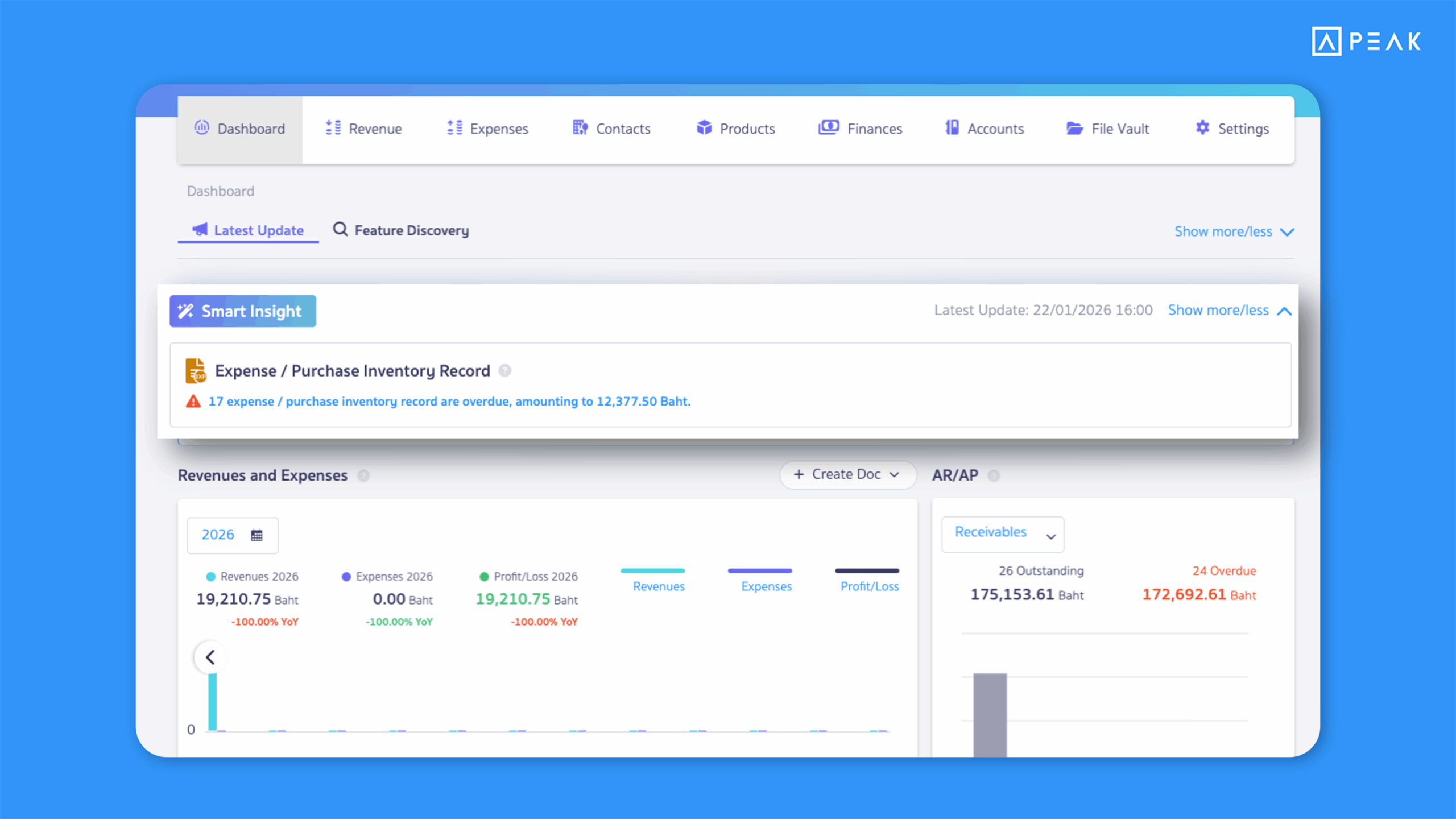
1. SMART Insight helps you stay ahead with alerts for upcoming due expenses documents—track them instantly from the home page.
Suitable for: Basic package and above users who want easier tracking of expense document status
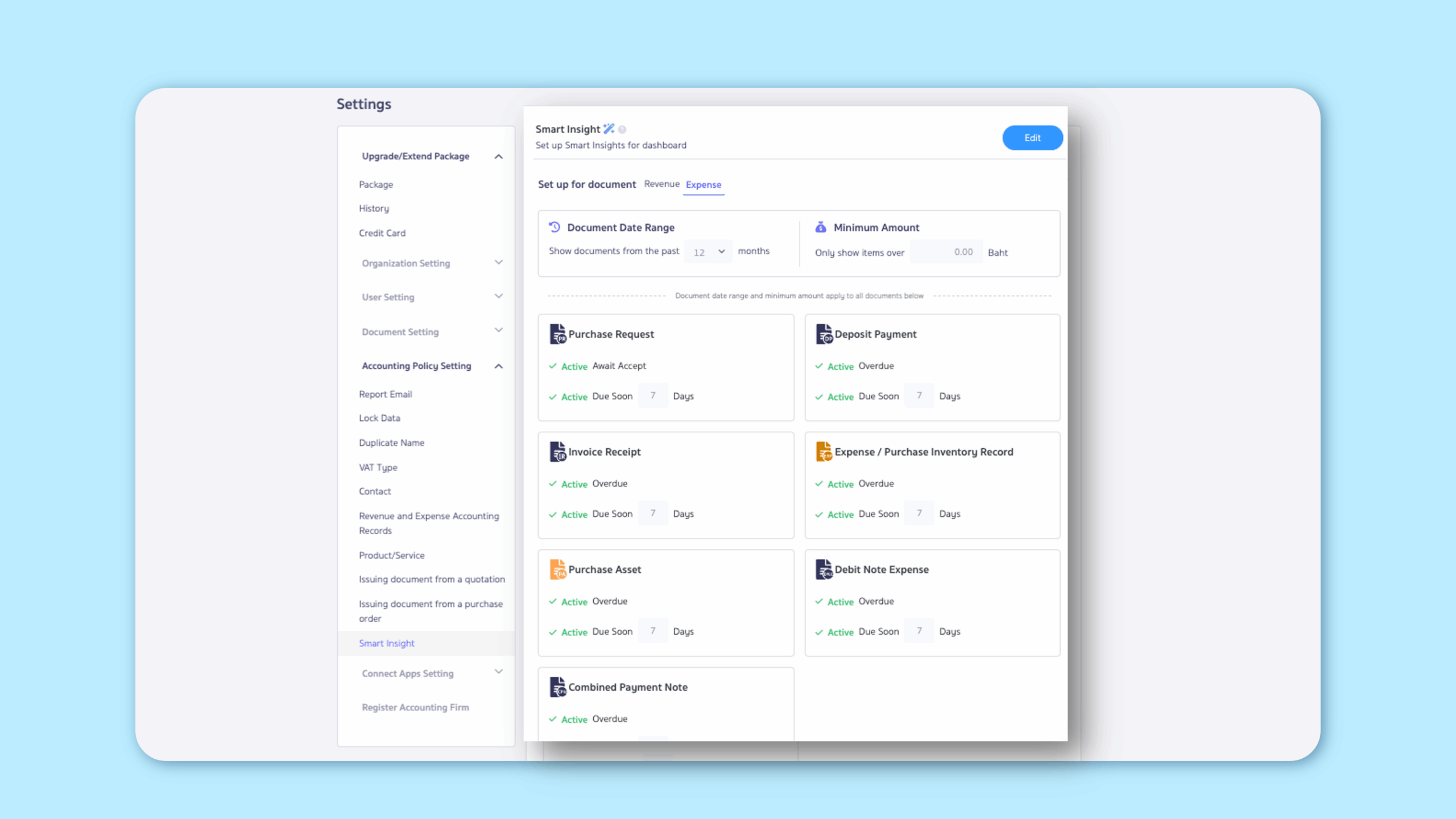
Highlight:Expense documents are now included in Smart Insight on the home page. The system helps monitor documents that are approaching their due date or are overdue. When selecting an alert, users are taken directly to the relevant document list with the date range automatically set. Users can also define the time range and minimum document value they want to track—making payment follow-ups faster and easier.
Supported documents:
- Purchase Requisition (Premium package only)
- Deposit Payment
- Invoice Receipt (Premium package only)
- Purchase Inventory Records
- Expense Record
- Purchase Asset
- Received Debit Note
- Combined Payment Note
SMART Insight indicators:
- Bell icon : Number of documents due within the configured period, plus total document value
- Exclamation icon : Number of overdue documents, plus total document value
Notes:
- SMART Insight will not be displayed if the user does not have permission for Expenses documents.
- Display settings can be customized (permission required).
- Users can toggle document status and due date visibility.
- If no documents meet the conditions, SMART Insight will not be shown.
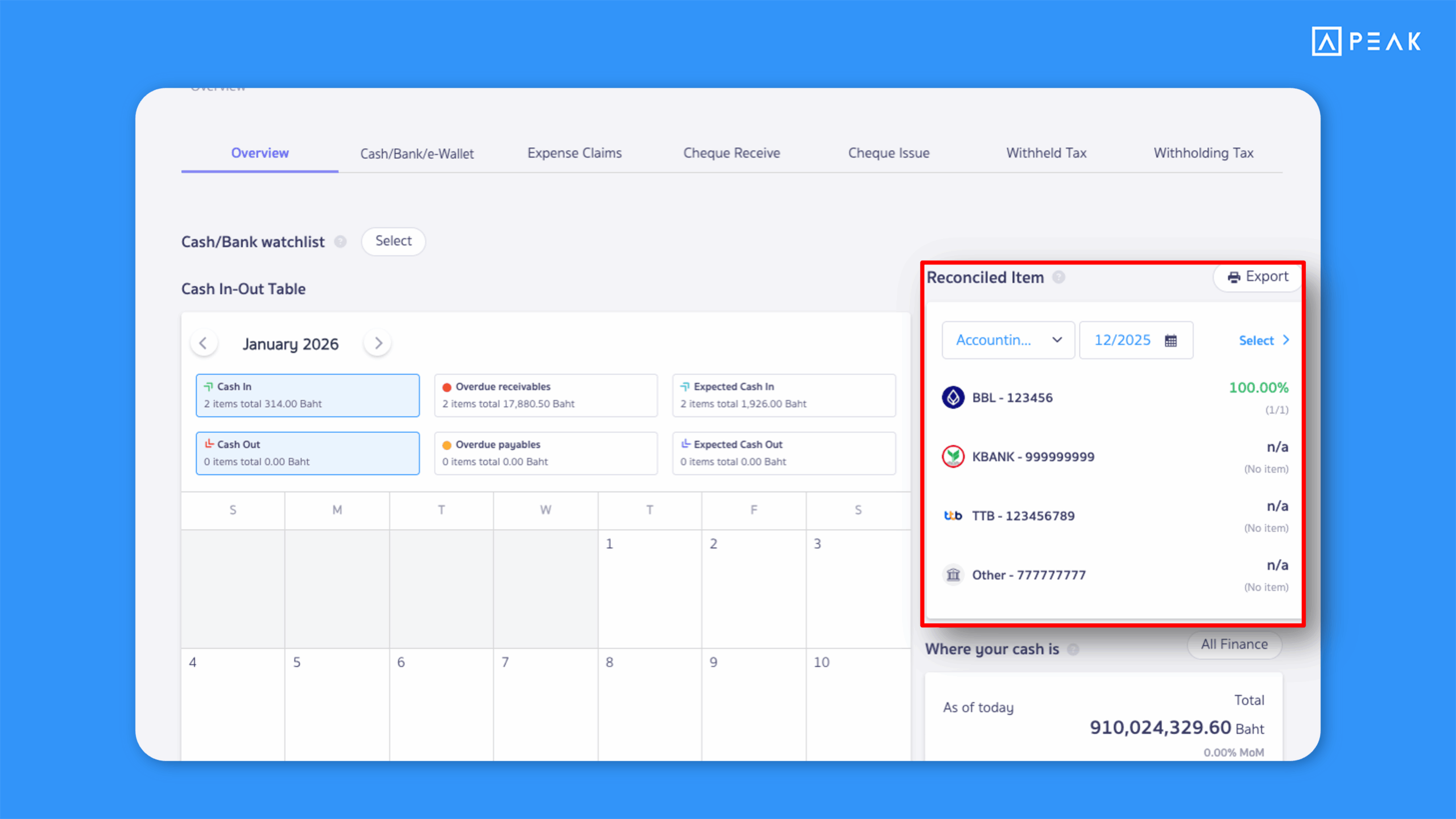
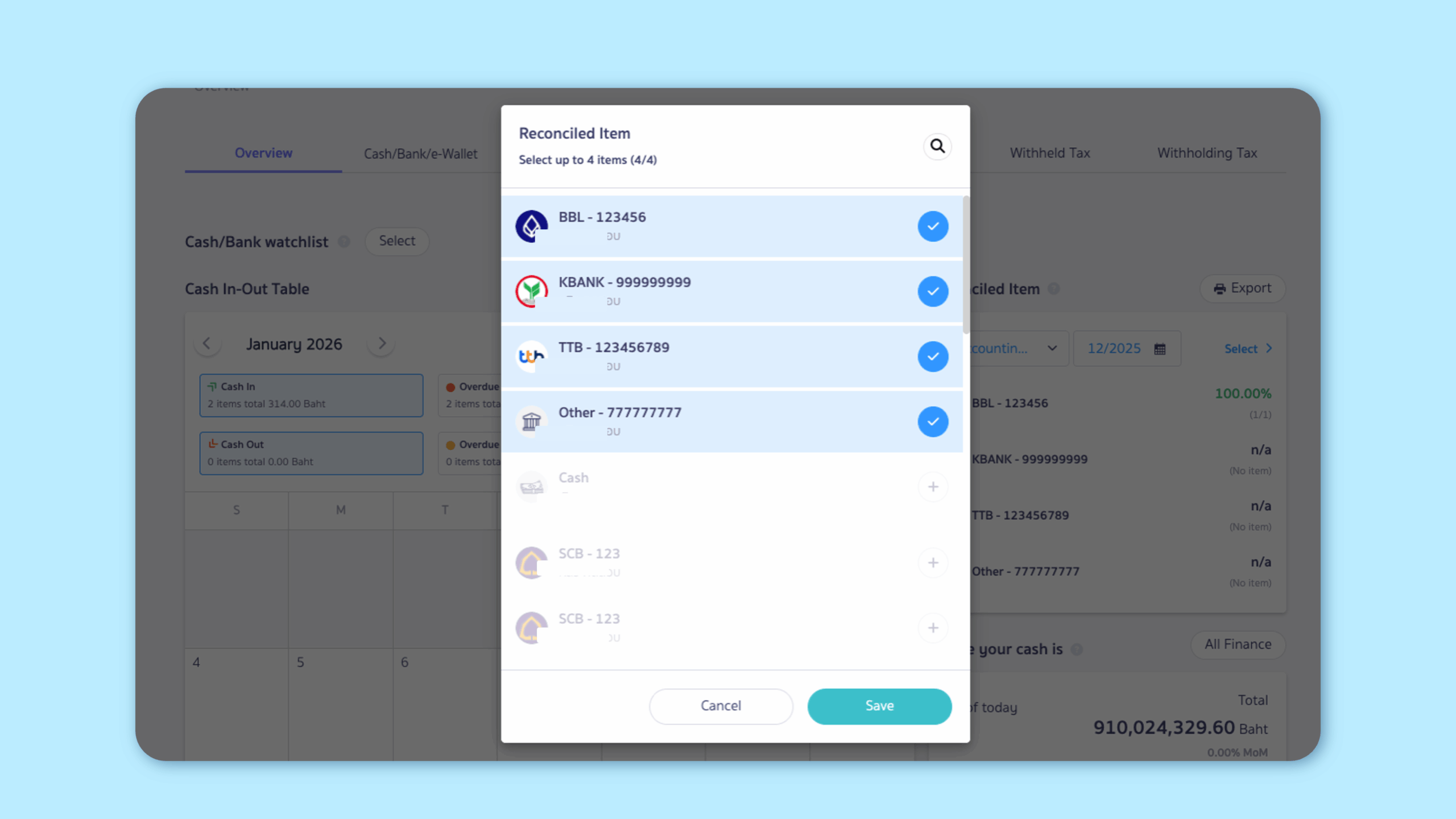
2. Added a Reconciliation Status Dashboard in the Finances menu, so you can immediately see whether each payment channel has been reconciled.
Suitable for: Accountants who perform reconciliations and want quicker visibility
Highlight:A new dashboard in the Finance menu displays reconciliation status for up to 4 selected payment channels, shown in four clear statuses:
- Green: Fully reconciled
- Yellow: Partially reconciled
- Red: Not reconciled
- N/A: No accounting entries
Notes:
- Reconciliation reports can be generated for up to 12 months
- Reports show the number of transactions per channel, reconciled items, and reconciliation percentages clearly
- Displayed only to users with access to the Finance menu
- Provides an instant overview of reconciliation status across financial channels
3. Added an Orders from Platform tab on the Shopee API connection page, making it easier to track document status in one place.
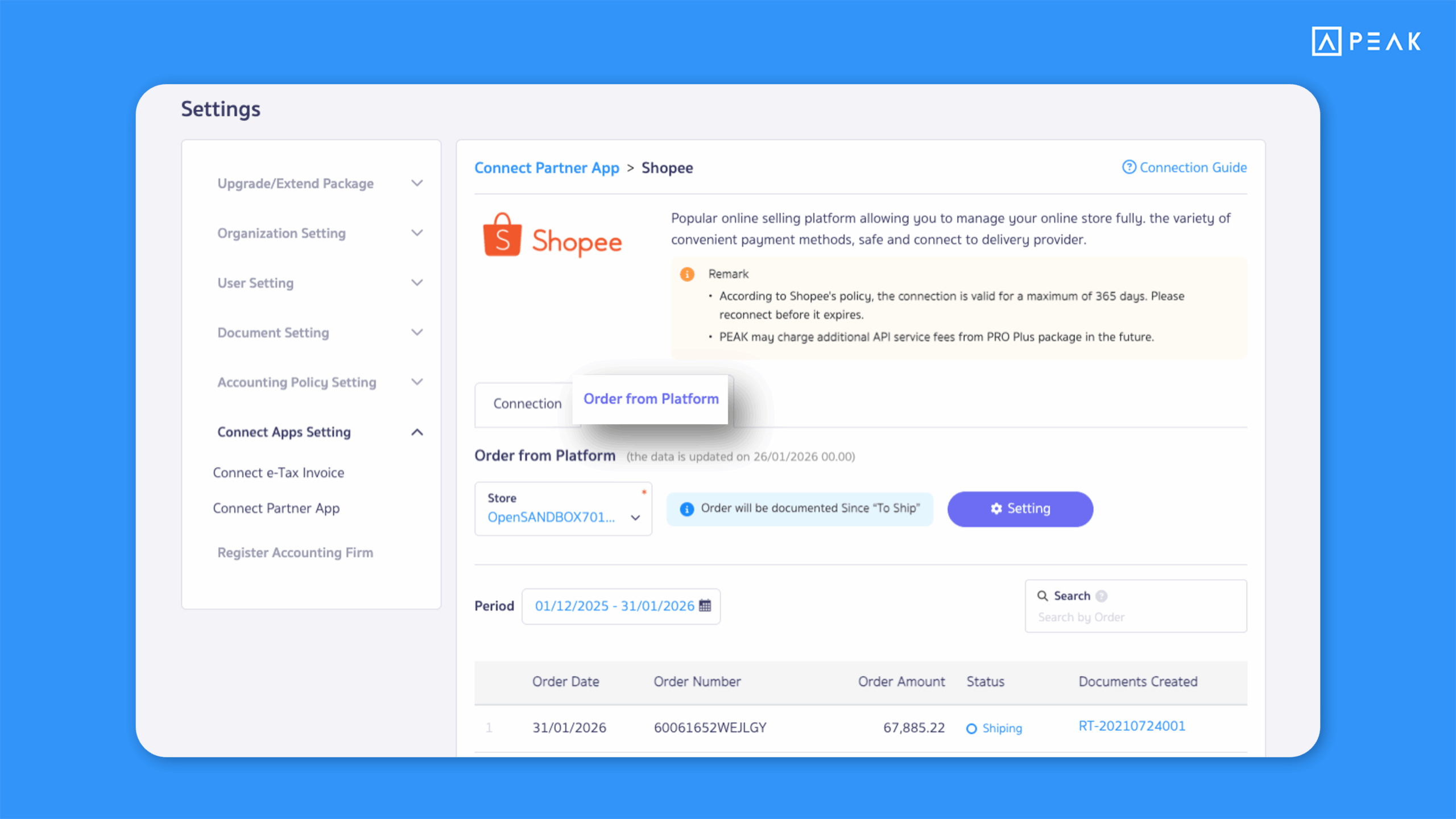
Suitable for: PRO PLUS package and above users who connect to Shopee via API
Highlight: A new Orders from Platform has been added to the Shopee API connection page, allowing users to track order status and document creation status in one place—making monitoring faster and more convenient.
Notes:
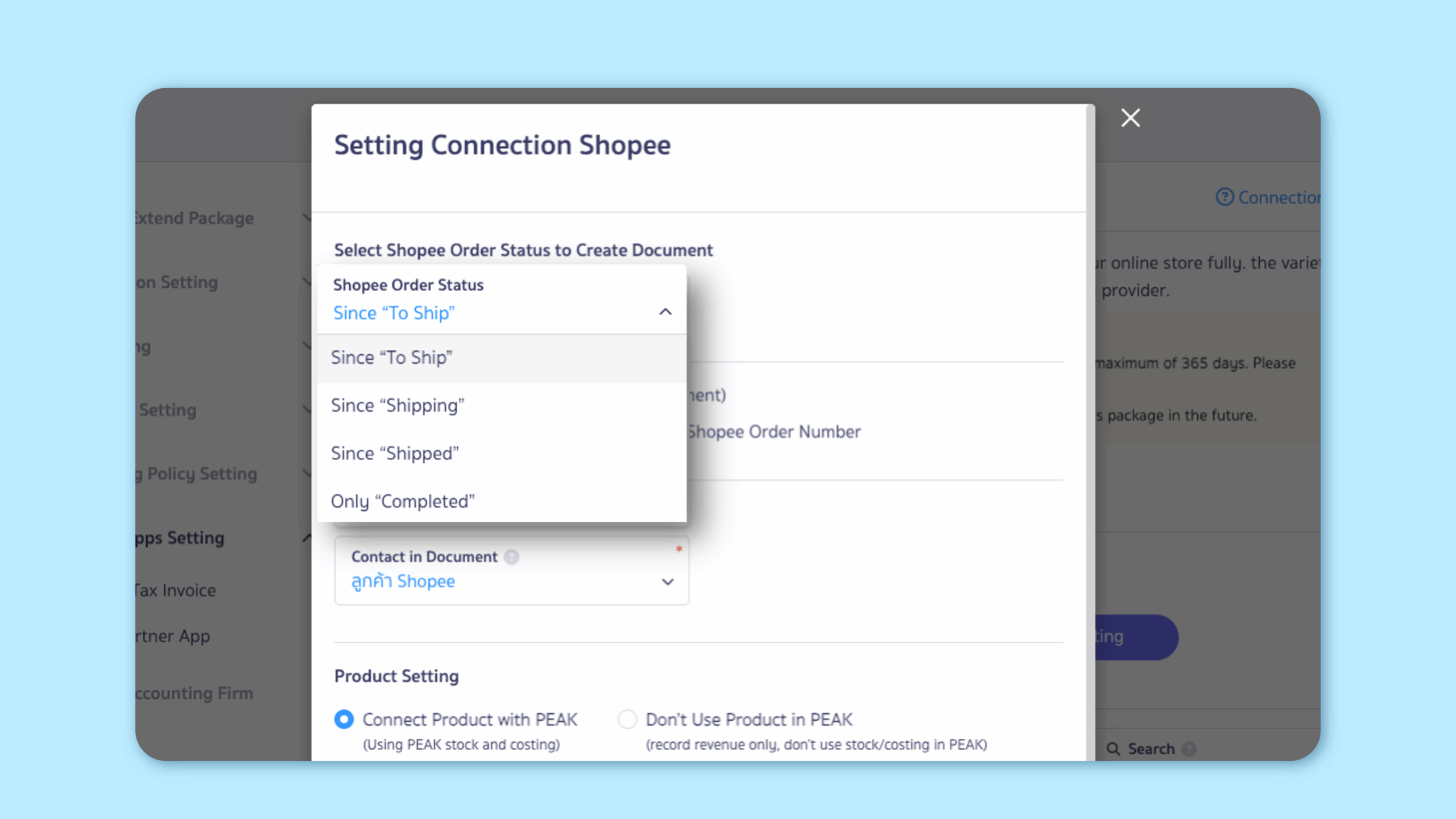
- Displayed data depends on connection settings under “Select Shopee Order Status to Create Document”
- Orders are sorted from newest to oldest (based on system recognition)
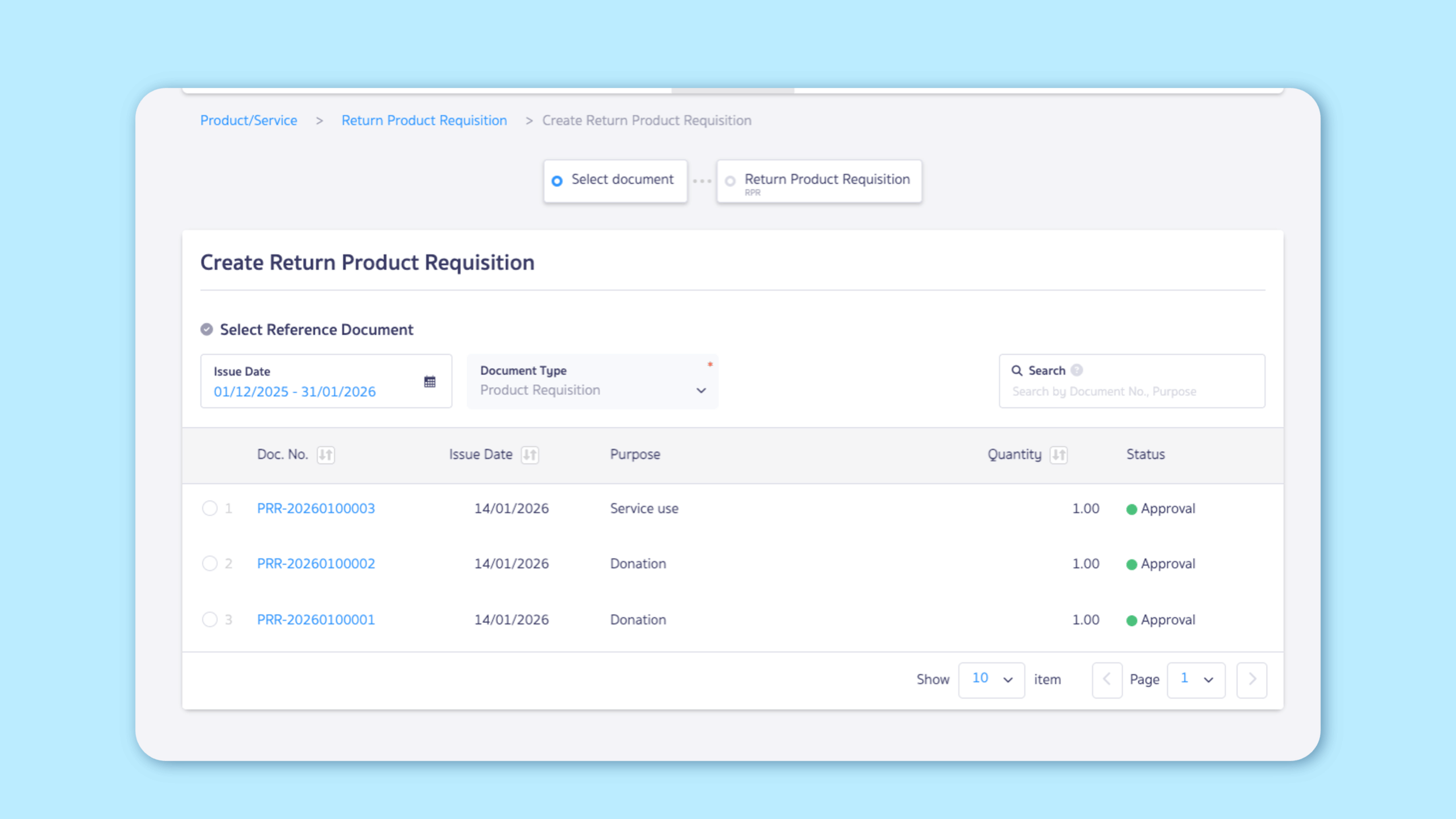
4. Added Return Product Requisition in the Products menu for more accurate and systematic stock management.
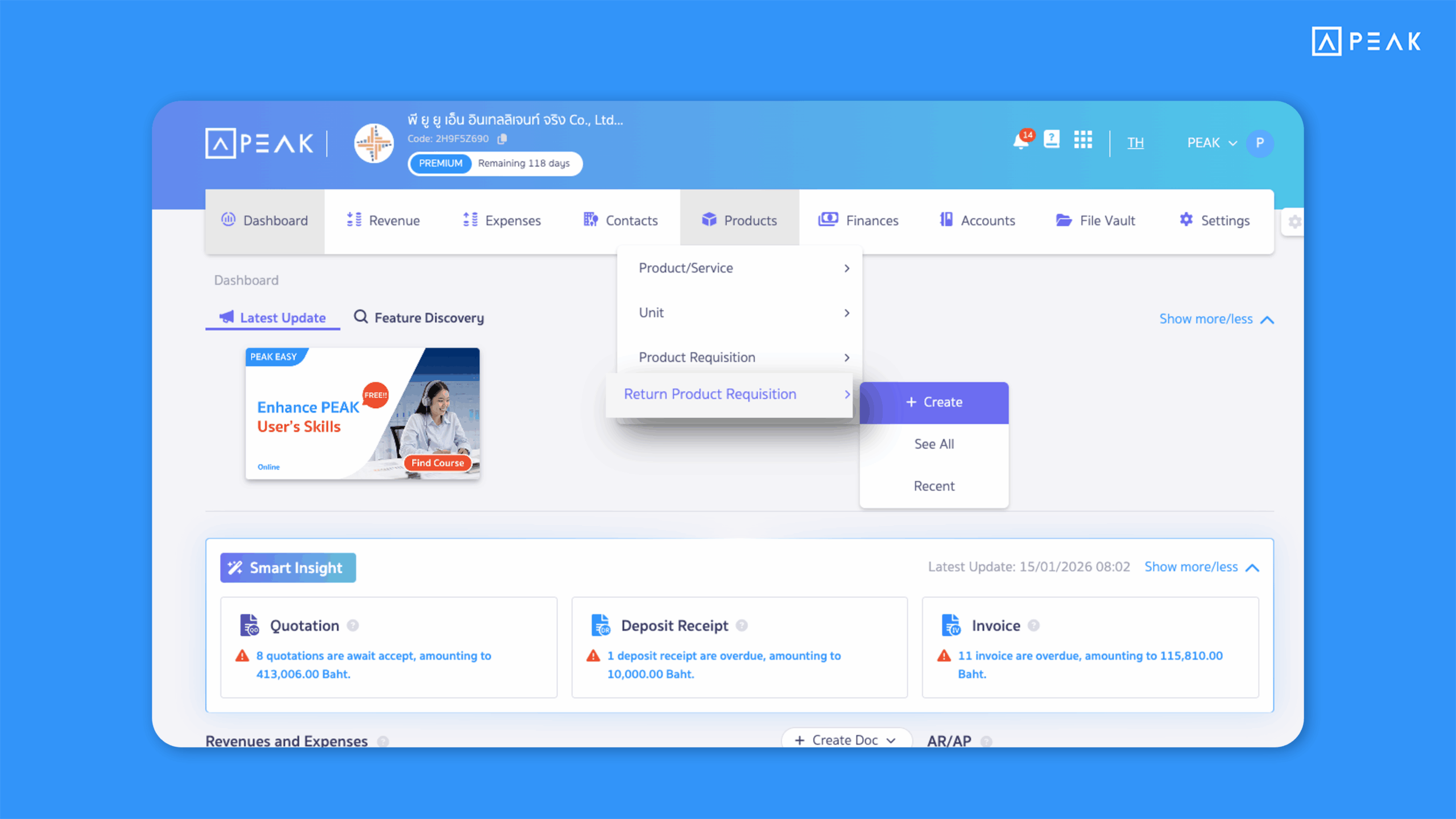
Suitable for: BASIC package and above users who use goods issue document
Highlight: When items issued from inventory need to be returned, users can create a Return Product Requisition to accurately adjust stock levels. This document must always reference the original Product Requisition and supports inventory reports—ensuring clear tracking of stock movements.
5. Added notification alerts (bell icon) at the top-right when other users create, edit, delete, or comment on documents—so you can track changes instantly.
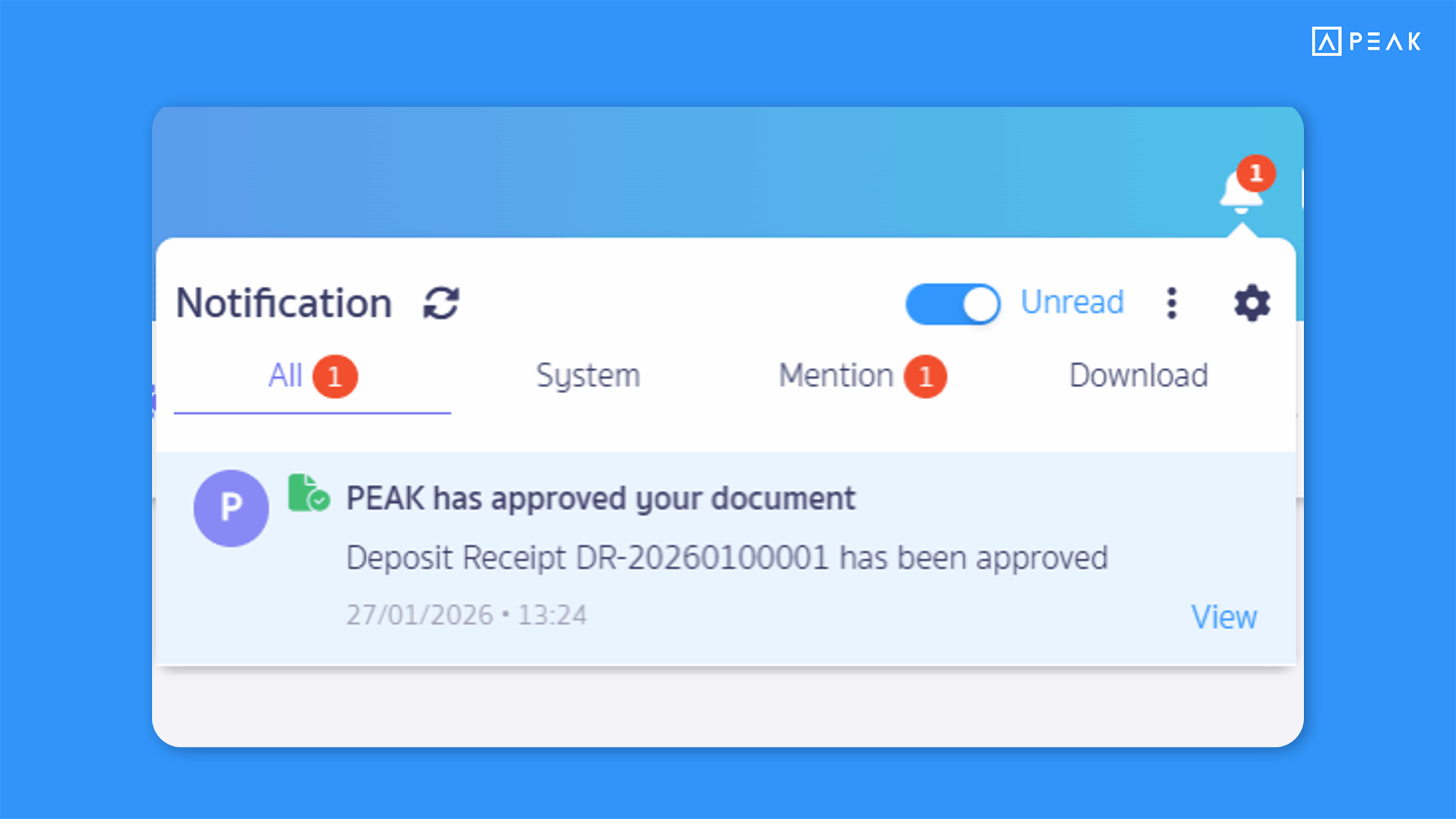
Suitable for: All packages with multi-user collaboration
Highlight: When another user creates, edits, deletes, or comments on a document created by someone else, a notification will appear at the top-right bell icon, helping teams stay aligned and track document activity in real time.
Notes:
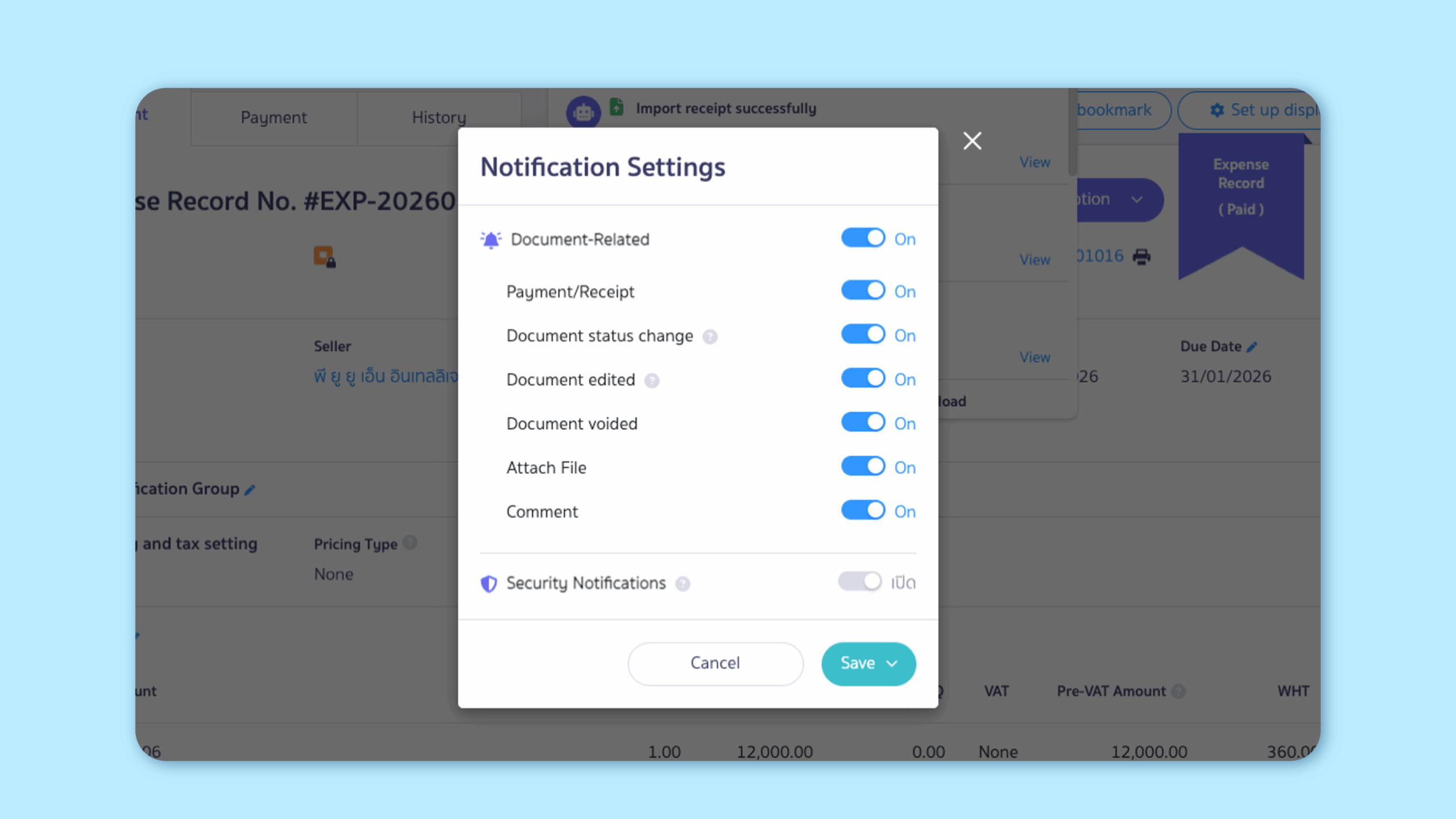
- Notification types can be enabled or disabled
- Notifications also apply to the PEAK Mobile Application
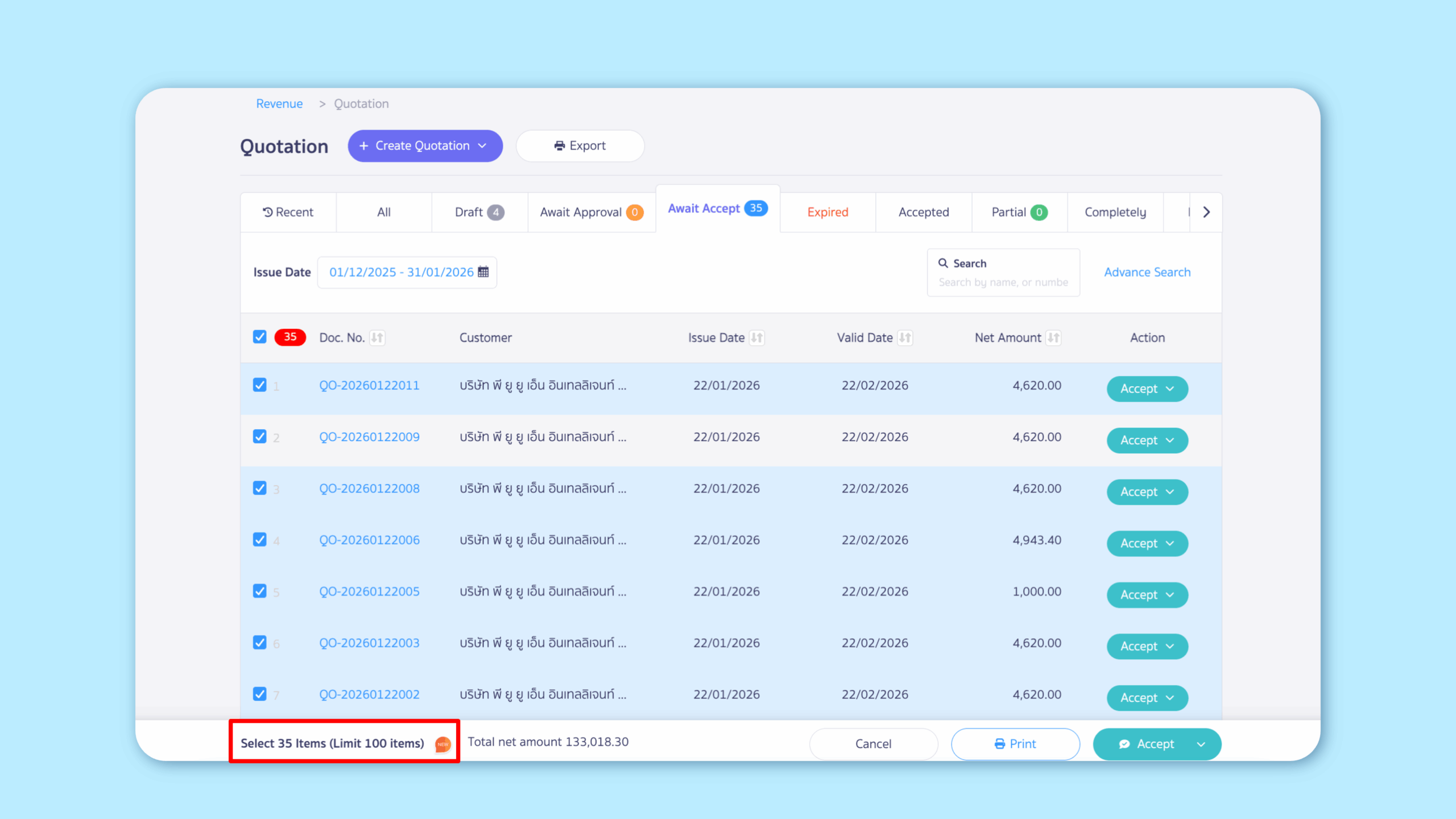
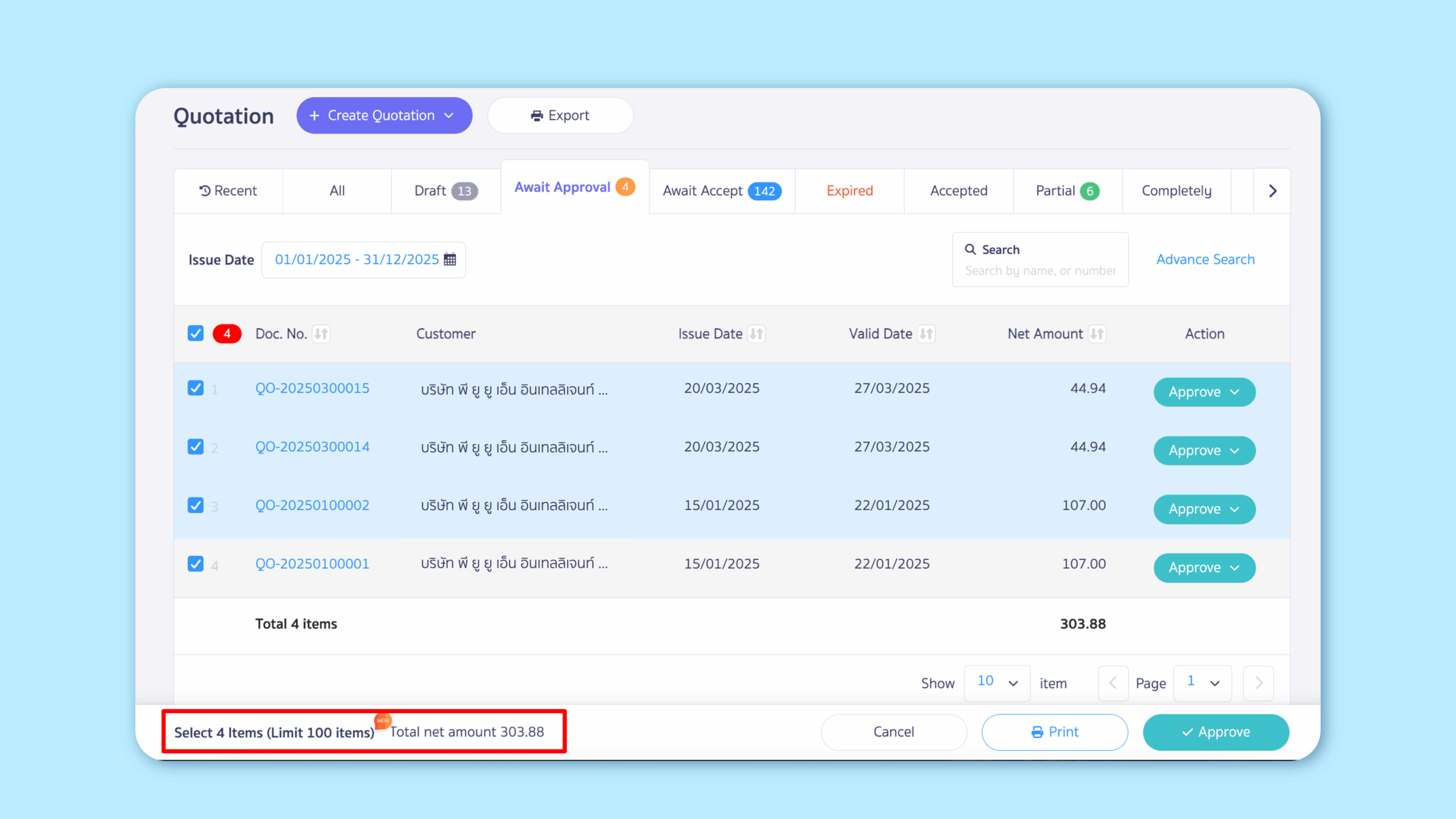
6. Increased the limit for bulk document printing and approved up to 100 documents per action, saving time on large workloads.
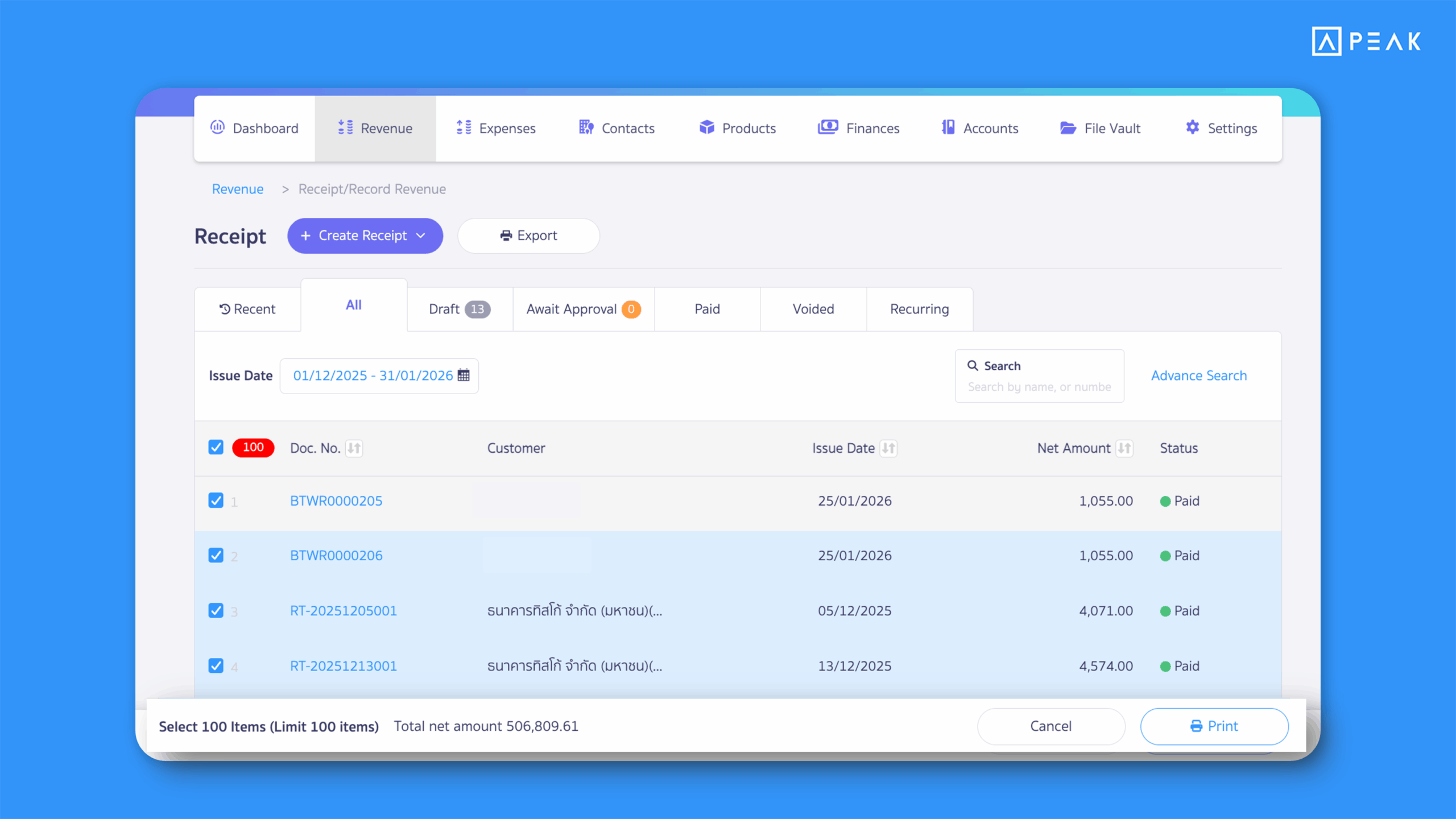
Suitable for: All packages that need to print or approve multiple documents at once
Highlight: The system now supports bulk printing to PDF and bulk document approval for up to 100 documents per action (previously 20), significantly reducing repetitive steps and saving time.
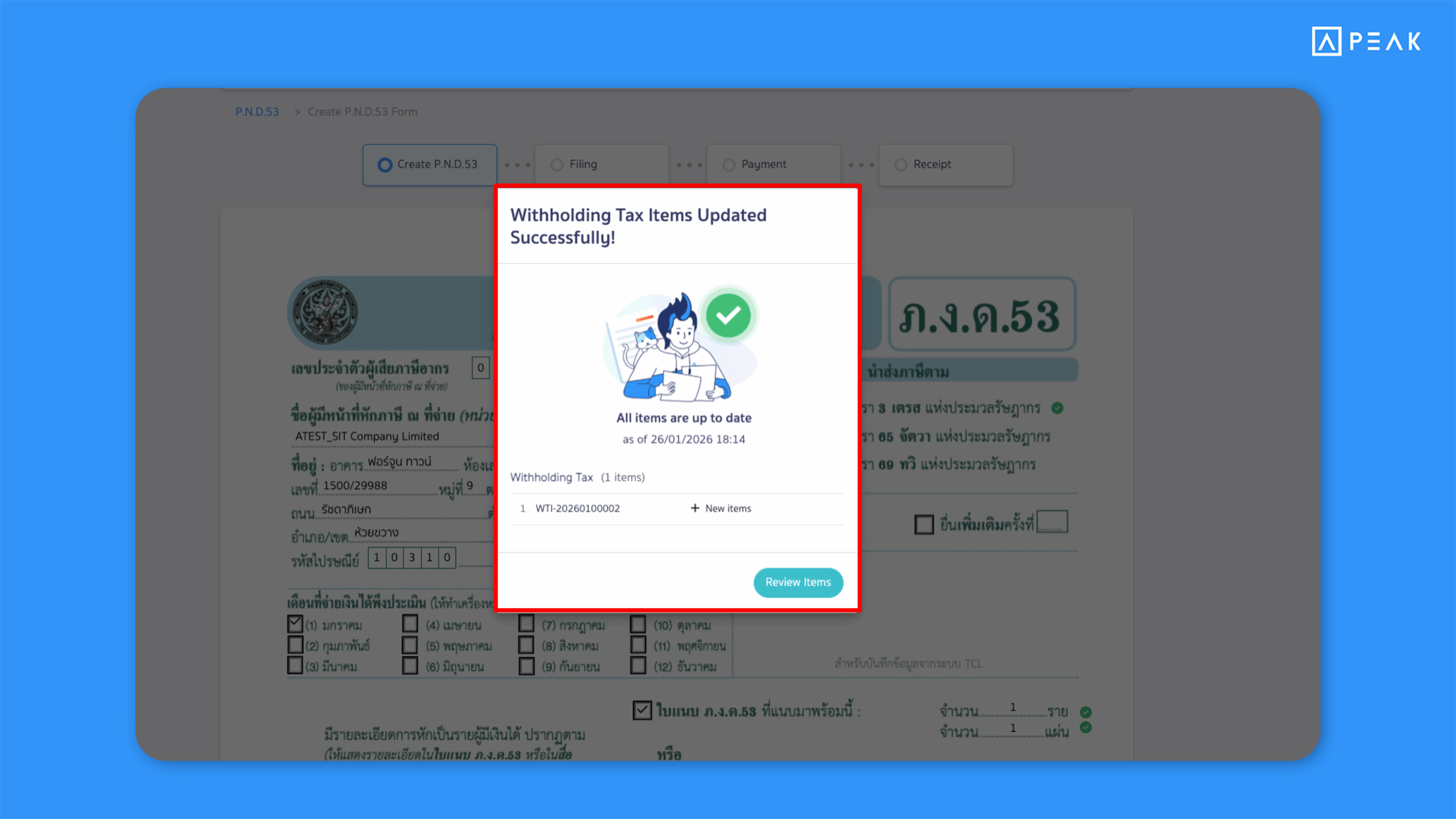
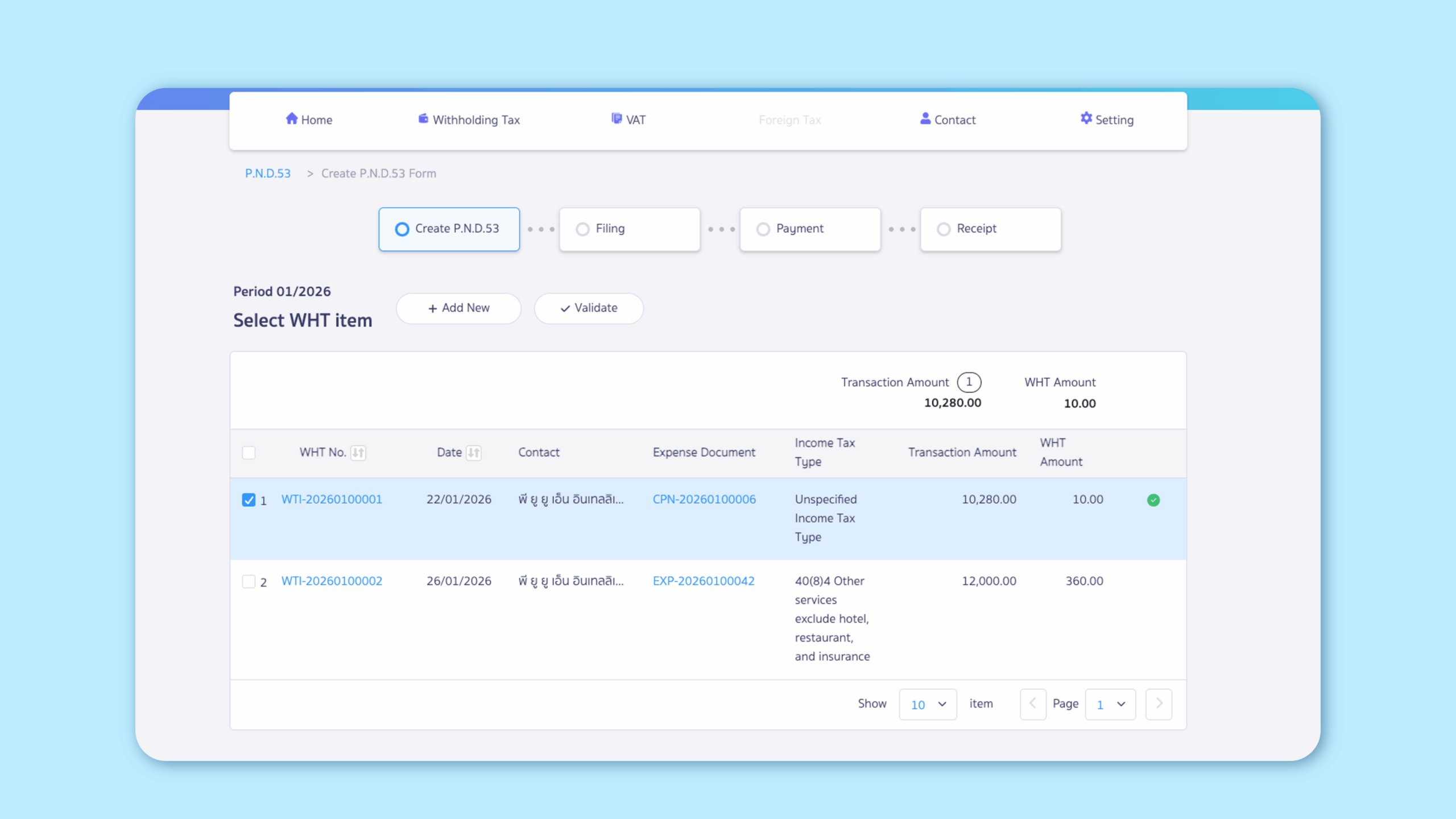
7. Added tax item verification on the PEAK TAX page to reduce the risk of missing data before filing.
Suitable for: PEAK TAX users
Highlight: A tax verification step has been added before form creation, allowing users to review tax completeness during the approval stage—reducing the risk of missing data and increasing confidence before filing.
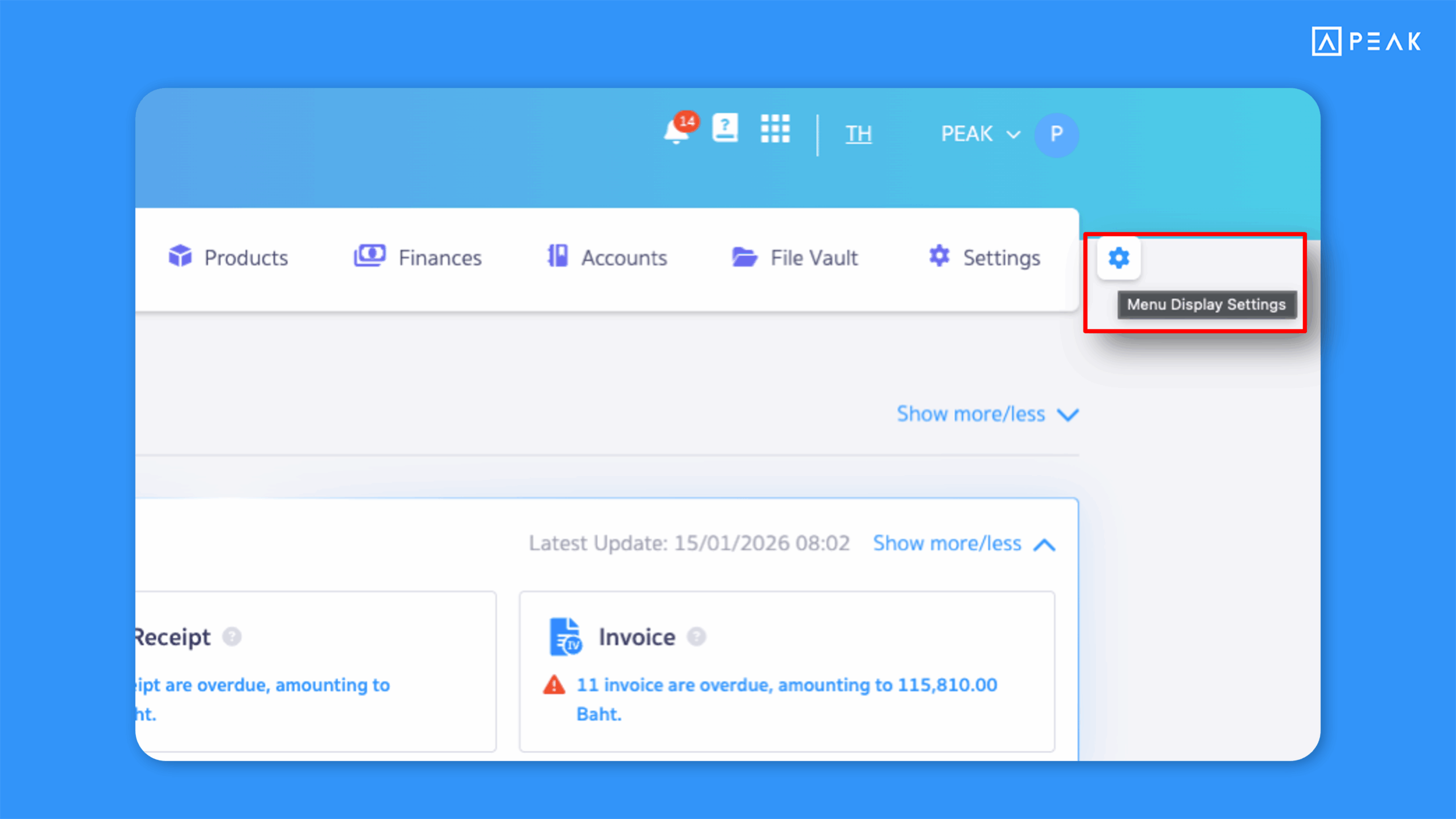
8. Added a gear icon next to the Settings menu for easier menu display settings configuration.
Suitable for: All packages
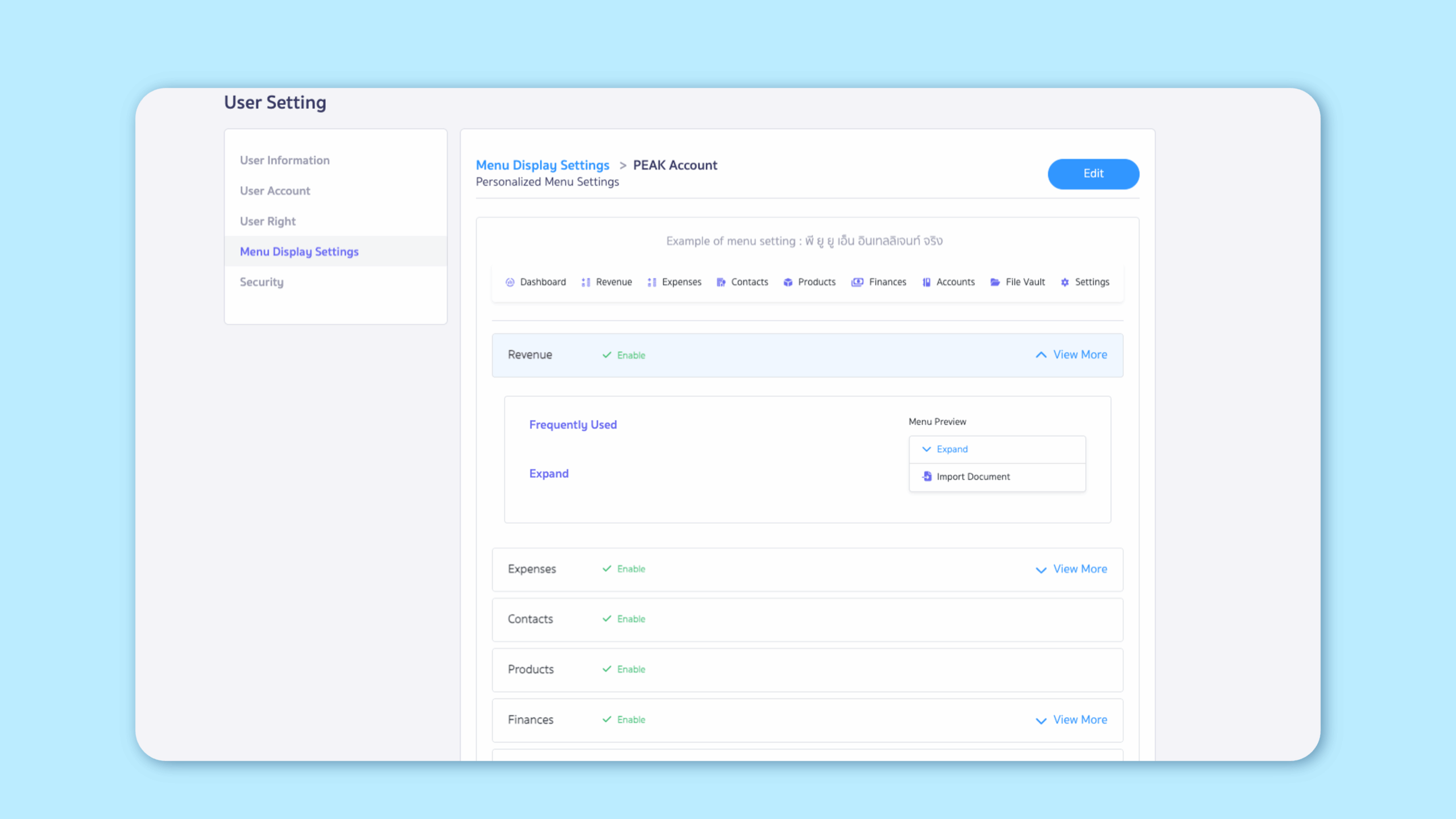
Highlight: A gear icon has been added next to the Settings menu. Clicking it redirects users to Menu Display Settings, allowing easy customization of which menus are shown.
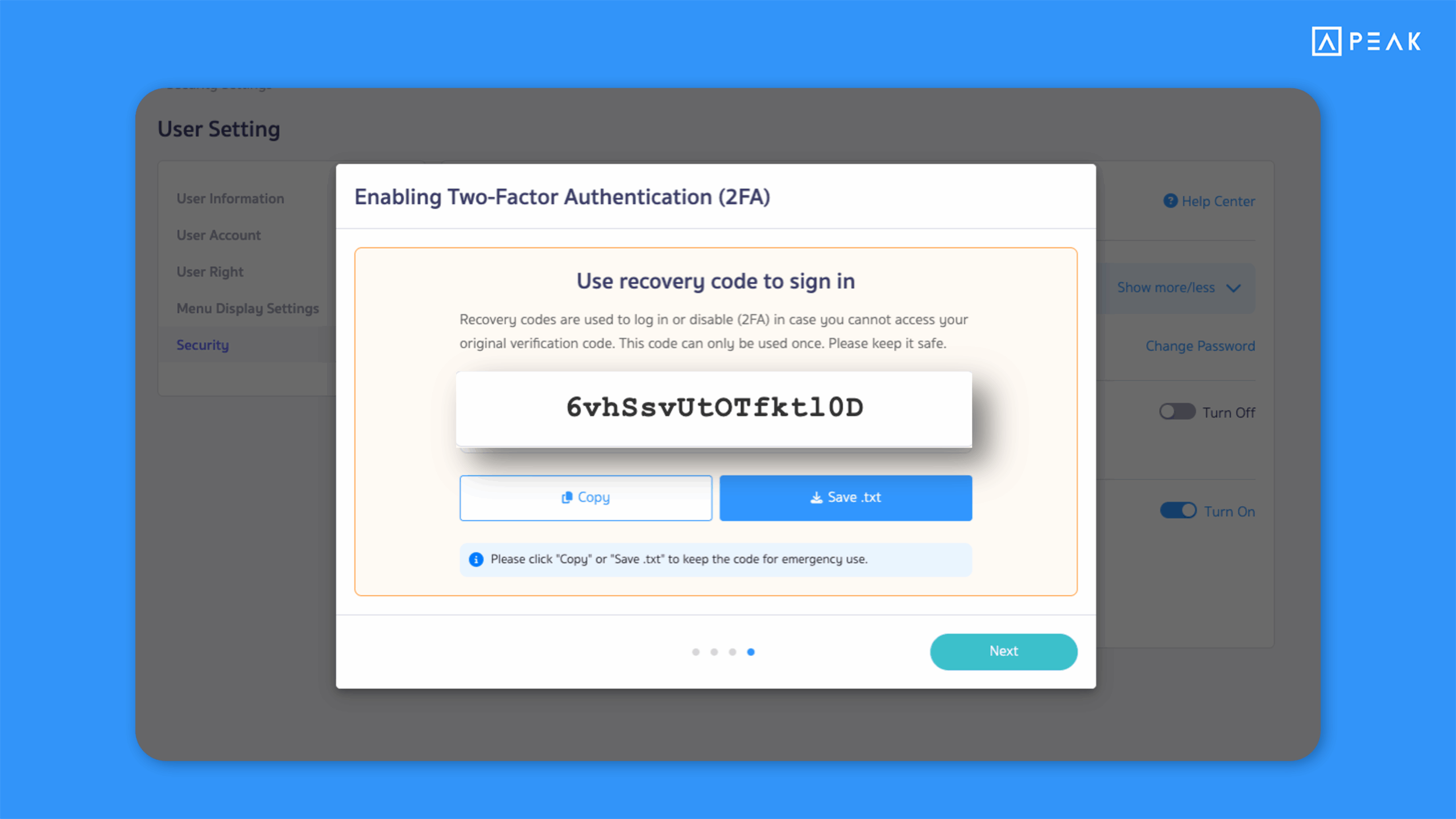
9. Added Recovery Codes for Two-Factor Authentication (2FA) to allow login when the 2FA code is unavailable.
Suitable for: Users who have enabled Two-Factor Authentication (2FA)
Highlight: When 2FA is Turn On, the system provides Recovery Code that can be used to log in or Turn Off 2FA if the original authentication method is unavailable—ensuring continued access.
Notes:
- Maximum of 10 incorrect password attempts
- Each Recovery Code can be used only once
- A new Recovery Code will be generated automatically after use
- Recommendation: Store Recovery Code securely, as they are shown only once after activation
About Author